
🎬 This page shares a full workflow for auto-editing AI videos: generate 3 image shots with GPT Image 2, turn each into an 8-second clip with Seedance 2.0 Mini (Omni Ref), then let Premiere Pro Beta's AI Assistant cut everything into a rapid match-cut montage with a single editing prompt. A universal prompt template is included so you can reuse the edit logic with any clips.
Created by STORYBOARD
Step 1: Prepare Image References
Prepare the image references before generating video clips.
- Use ImageRef as the female subject reference for Img01 & Img03.
- Use Img01, Img02, and Img03 as the three confirmed image shots.
- Keep the file labels simple and unchanged.
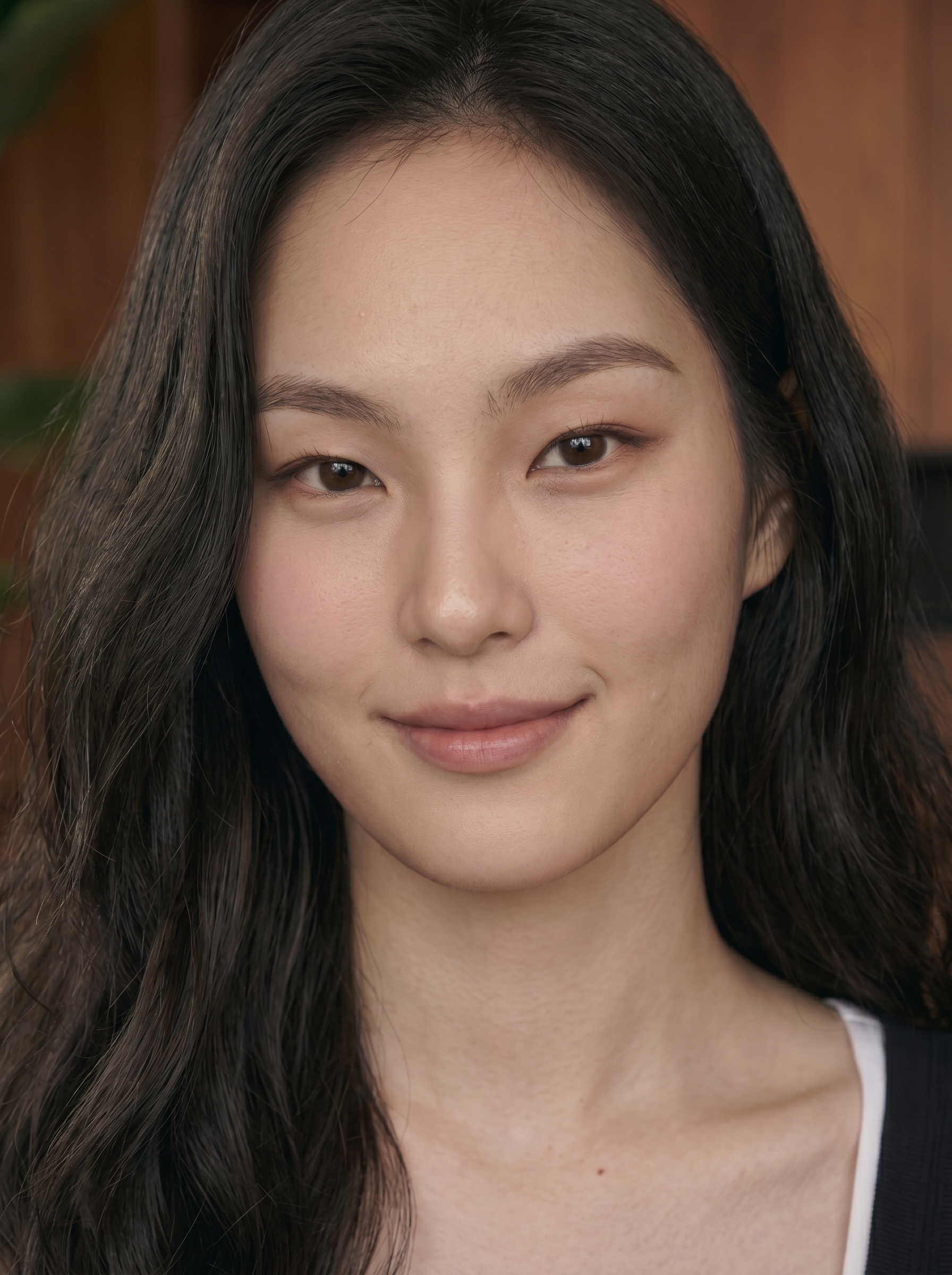
Step 2: Create Image Shots with GPT Image 2
Generate or confirm the three vertical 9:16 image shots first. These images define the visual anchors for the edit.
Img01
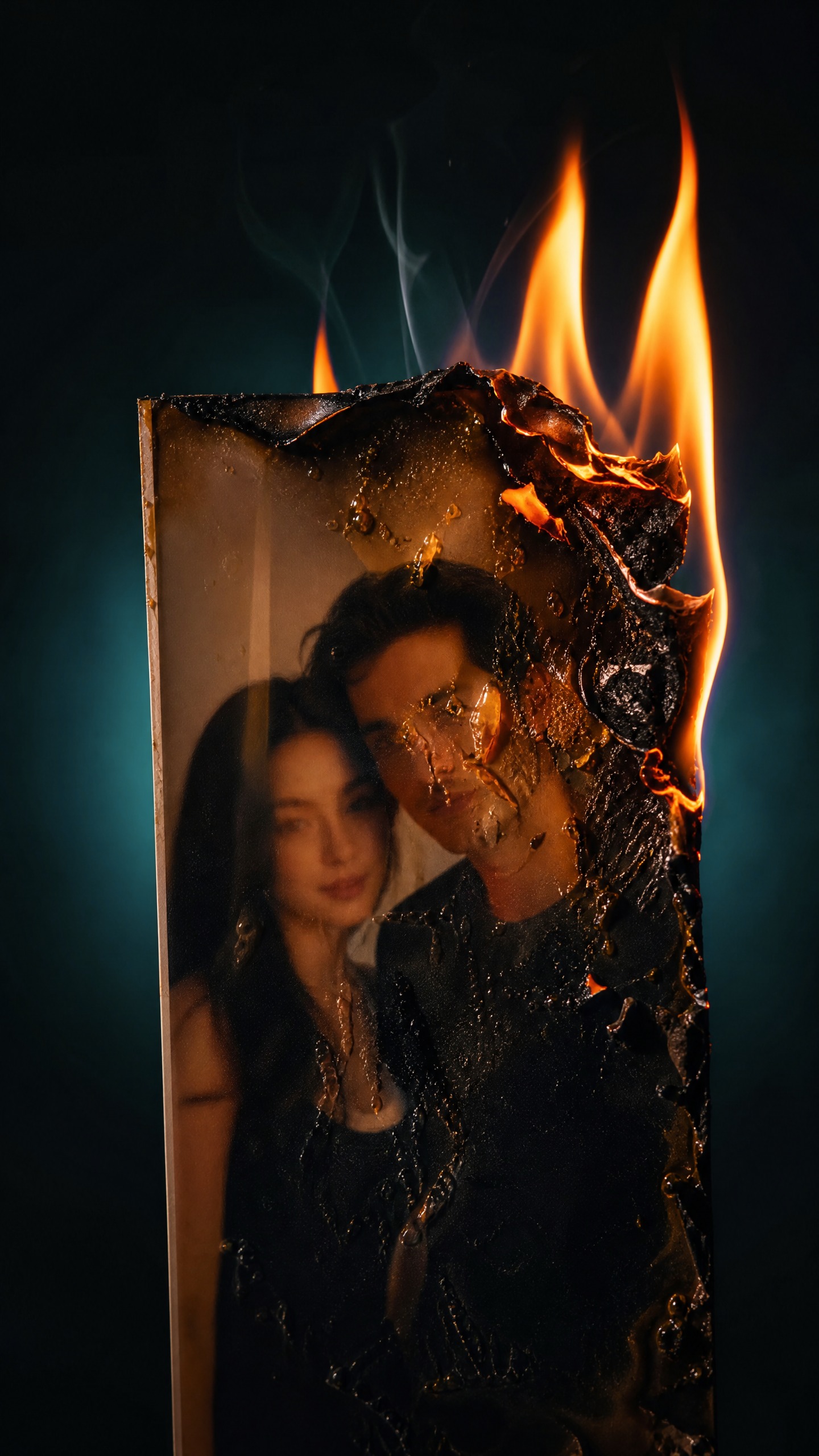
Prompt (copy/paste): Create a new vertical 9:16 ultra realistic cinematic editorial photograph. Extreme macro close-up of a modern glossy couple snapshot burning upright in the exact center of the frame. The burning photo fills most of the vertical image like an iconic object. No hands, no pedestal, no street, no visible set, only the burning photo and an abstract cinematic background.
Inside the photo, show a young Asian woman resembling ImageRef beside a young western-looking man. Their faces are softly readable but not sharp, naturally softened by heat damage, smoke, charred paper, and glossy surface distortion. The woman has long black hair and a soft oval face. The man should not look Asian. They wear different outfits from the action scene, modern date-night clothing, not vintage, not sepia, not an ancestor portrait.
Flame burns the top edge and right side. The paper is realistically charred, curled, cracked, and eaten away by fire. Smoke rises upward. The image surface is damaged by heat, soot, bubbles, and black ash, but there are no water droplets, no honey-like liquid, no rain, no wet drips, no glossy gel. Background is deep cyan-teal darkness with a soft electric blue halo behind the burning paper, warm amber-orange flame highlights, rich clean blacks, high contrast, realistic macro lens depth, premium cinematic realism, no CGI, no anime, no text, no logo.
Img02
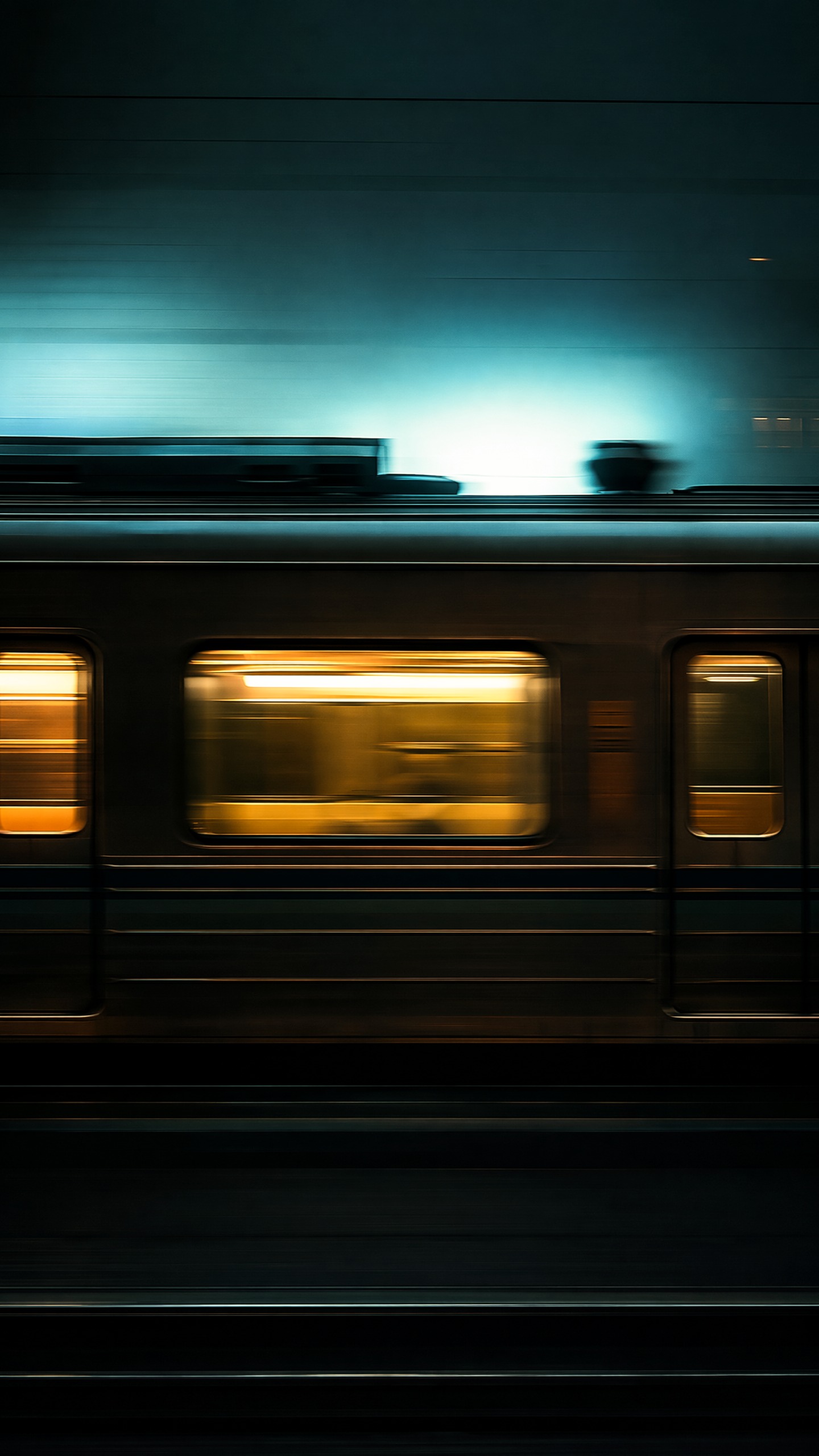
Prompt (copy/paste): Create a new vertical 9:16 ultra realistic cinematic photograph of a fast passing train in a tight side-on composition. The train crosses horizontally through the frame with strong motion blur, dark glossy exterior, amber interior window streaks, and cyan-teal reflections. Keep the camera locked and perfectly parallel to the train body. No people, no platform crowd, no station clutter.
The composition should feel graphic and iconic: horizontal train bands, glowing rectangular windows, deep black lower tracks, a cyan-blue light wash behind the train, and warm amber highlights inside the windows. Premium cinematic editorial realism, realistic long-exposure motion, rich blacks, controlled highlights, deep cyan-teal shadows, warm yellow-orange interior glow, not stock photo, no HDR, no neon, no text, no logo.
Img03
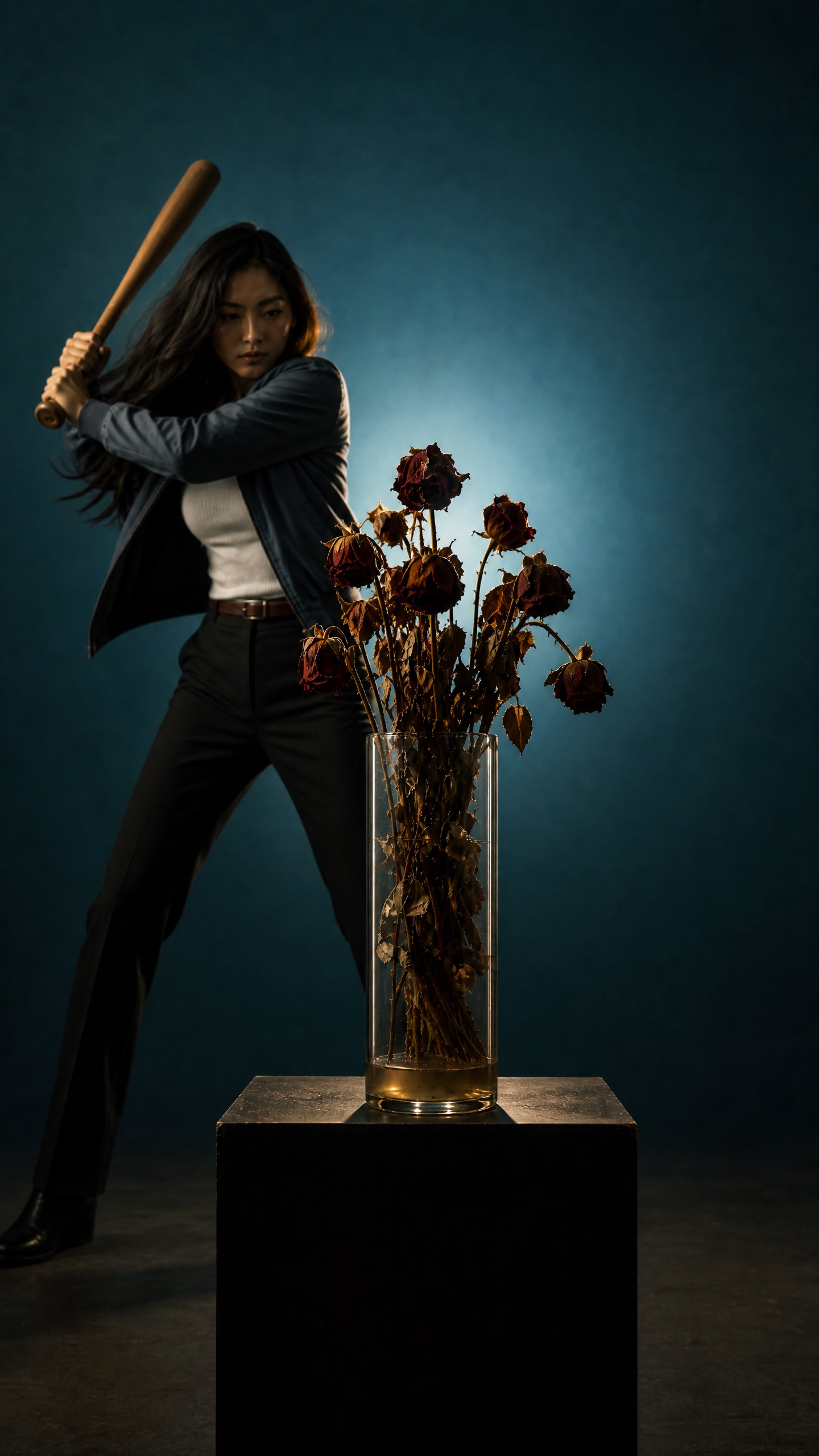
Prompt (copy/paste): Create a new vertical 9:16 ultra realistic cinematic editorial photograph. A clear cylindrical glass vase filled with wilted dark red roses stands exactly in the center of the frame on a dark minimal block. The vase is the main visual anchor and must be perfectly centered. The roses are dead and dry: drooping heads, curled dry petals, browned edges, tired stems, cloudy low water only at the bottom, not fresh roses.
The same Asian woman from ImageRef stands behind and to the left side of the centered vase, preparing to swing a wooden baseball bat from screen-left toward the middle of the vase. She is frozen just before impact, not smiling, focused, long black hair moving naturally, wearing a blue-gray bomber jacket, white ribbed tank top, black pants, and practical boots. Her body proportions should look natural and athletic, not short, not compressed, not fashion posing.
Environment is minimal cinematic set, not a street, not a rooftop, not a construction site. Smooth deep cyan-teal background with a soft blue-white halo directly behind the centered vase, warm rim light on the glass and dry roses, deep red-brown and black shadows, rich clean blacks, high contrast, realistic lens depth. No broken glass yet, no impact yet, no water splash, no clutter, no text, no logo, no CGI, no anime, no stock photo.
👉 Full training on how to create AI videos like a professional inside our community. Join our Skool community https://www.skool.com/storyboard
Step 3: Generate Video with Seedance 2.0 Mini (Omni Ref)
Use each confirmed image shot to generate one separate 8-second video clip.
Scene01
Prompt (copy/paste): Use Img01 as the fixed visual anchor and create an 8-second vertical 9:16 video. The burning photo stays upright and centered as one macro object shot. The people inside the photo are printed still images only; they must not blink, move, breathe, change expression, or become clearer. Fire naturally eats away the paper over time until roughly half of the photo is burned away. Charred edges curl, ash flakes, smoke rises, and the photo darkens.
Keep the background abstract deep cyan-teal with warm amber flame highlights. No camera drift. No hands. No water droplets, no liquid drips, no rain, no melted honey, no wet surface. The face details should stay softly readable but damaged and partially obscured by heat, smoke, soot, and missing paper.
Scene02
Prompt (copy/paste): Use Img02 as the fixed visual anchor and create an 8-second vertical 9:16 video. Keep the camera locked in a tight side-on train composition. The train continues moving fast horizontally in one continuous direction for the entire clip. Windows, doors, amber interior streaks, cyan reflections, and dark train body details progress naturally forward.
Do not loop the same window pattern. Do not restart the train pass. No camera shake, no platform crowd, no added text, no logo. Preserve the cinematic color: deep cyan-teal shadows, warm amber highlights, rich blacks, controlled contrast.
Scene03
Prompt (copy/paste): Use Img03 as the fixed visual anchor and create an 8-second vertical 9:16 video. Keep the vase locked exactly in the center of the frame. The woman swings the wooden baseball bat in slow motion from screen-left toward the middle of the glass vase. The bat must strike the center body of the vase, not the top rim and not the flowers.
Timing: first 5 seconds are the slow-motion approach and impact setup. Last 3 seconds show the actual hit and aftermath. The glass vase should break physically and naturally from the center impact: cracks spread, the cylinder collapses, small and medium shards fly outward, the vase no longer stays perfectly intact. Wilted roses, dry petals, stems, and leaves burst away with the motion. Only a small amount of murky water from the bottom of the vase spills out; do not create a large splash, milk splash, or new water volume. No giant glass panels, no frozen vase, no CGI look, no text, no logo.
Step 4: Auto-Edit in Premiere Pro Beta (AI Assistant)
Open Premiere Pro Beta, import Scene01.mp4, Scene02.mp4, and Scene03.mp4 into the editor, then open the Assistant panel. One prompt handles the structure, pacing, continuity rules, and final duration.
Prompt (copy/paste): Edit the 3 existing source videos into one final vertical 9:16 video, exactly 6 seconds long.
Source clips: Scene01 = burning couple photo Scene02 = fast passing train Scene03 = woman hitting centered vase
Do not generate new footage. Only edit the existing videos.
Use this repeating order for the entire edit: Scene01 -> Scene03 -> Scene02
Make it a rapid cinematic match-cut montage from start to finish. Cut very fast, around 7-9 cuts per second. Each shot should last about 2-3 frames at 25fps.
Continuity is critical: every time a scene returns, continue from a later moment in that same source clip. Do not restart clips. Do not loop the same frames. Do not freeze frames.
Compress the full 8-second progression of each source clip into the 6-second final edit: early moments at the beginning, middle moments in the middle, late intense moments near the end.
Scene01 fire keeps burning forward. Scene03 swing progresses to vase impact and broken aftermath. Scene02 train keeps moving forward continuously.
Keep intercutting until the final frame. Do not end with one long shot.
Use hard cuts only. No dissolves, fades, transitions, text, subtitles, or logos.
Match color: deep cyan-teal shadows, warm amber highlights, rich blacks, cinematic contrast.
Universal Prompt Template
Use this template when the source clips or scene concepts are different.
Prompt (copy/paste): Edit the imported source videos into one final vertical 9:16 short video.
Do not generate new footage. Only edit the existing source videos.
Final duration: [TARGET_DURATION] seconds.
Source clips: [Scene01] = [describe clip 1] [Scene02] = [describe clip 2] [Scene03] = [describe clip 3]
Use this repeating order for the entire edit: [Scene01] -> [Scene02] -> [Scene03]
Make it a rapid cinematic match-cut montage from start to finish. Use fast hard cuts. Average around [CUTS_PER_SECOND] cuts per second, or about [FRAMES_PER_SHOT] frames per shot.
Continuity is critical: every time a source clip returns, continue from a later moment in that same source clip. Do not restart clips. Do not loop the same frames. Do not freeze frames.
Compress the full progression of each source clip into the final edit: early moments at the beginning, middle moments in the middle, late intense moments near the end.
Keep intercutting until the final frame. Do not end with one long held shot unless specifically requested.
Use hard cuts only. No dissolves, fades, generic transitions, text, subtitles, or logos.
Match color and mood across all clips: [COLOR_MOOD].
Full Workflow Summary
- Prepare ImageRef and lock the three shot labels (Img01, Img02, Img03).
- Generate the three 9:16 image shots with GPT Image 2.
- Turn each image into one 8-second clip with Seedance 2.0 Mini (Omni Ref).
- Import all three clips into Premiere Pro Beta.
- Run one AI Assistant prompt to cut the 6-second match-cut montage.
- Review: only source footage used, clips progress forward on every return, fast hard cuts to the final frame.
The key is continuity plus compression: every clip keeps moving forward in time while the edit squeezes 24 seconds of footage into 6.
👉 Full training on how to create AI videos like a professional inside our community. Join our Skool community https://www.skool.com/storyboard